


Adding Linux dual booting while keeping your Windows installation
Contents
Backstory
After a recent incident where I had to revive my Windows (Reviving Windows after a failed driver update), I’ve been wondering how usable Linux is on a modern laptop and this is a story of how I made Debian with KDE Plasma my main OS and still able to keep my Windows installation as a backup.
The problem I am having with Windows is less privacy and the fact that I was stuggling with getting newer drivers installed due to OEM lock, hence the Reviving Windows..
So how did it go?
Previous attempts
Some of you might have wanted to try Linux, some of you might have gotten to a point where you started doing research and some might have even tried to install it, but quickly found out about Windows Recovery Partition…
Let me explain - even though you probably have more than enough storage space to add another operating system to your device, Windows adds a Recovery Partition after the partition where your system is located. Why is that a problem? Because that means that you can’t usually shrink your volumes enough to create enough space where you could install Linux, even after defragmenting your disk.
Let’s not focus on how I tried and failed in the past to make more space by removing the said partition or using parted on a live linux..
This post will be about how to add a secondary (primary) boot option while keeping your old Windows still bootable. And most importantly - with no risk of currupting your files!
The plan
Let’s solve this by deleting everything on the disk and starting over. Yes, those who want to keep their files, will need to backup first.
It’s simple, we can create a backup, create new partitions and restore our system there. This requires a “smart” backup where the backup software is aware of the storage used. Then we create smaller partition for our Boot and Windows (and optionally even append the Recovery Partition) and then restore our files there.
Acronis True Image is the software I chose, but I am quite sure you can achieve the same thing with Clonezilla.
Pre-requesities
- Bootable image of Backup&Restore software, ideally WinPE based or you will need to restore Recovery Partition (or create bootable Windows Recovery Media)
- Bootable installation media of your favourite Linux distribution
We are going to need a bootable image from where we can backup and restore. I highly recommend doing an “offline” backup rather than a “live” backup. People say that backing up a system that’s changing is safe, but I am going to stick to what I believe in this case.
Acronis has the said tool available and you can install it by following How to Create Bootable Media on the official website.
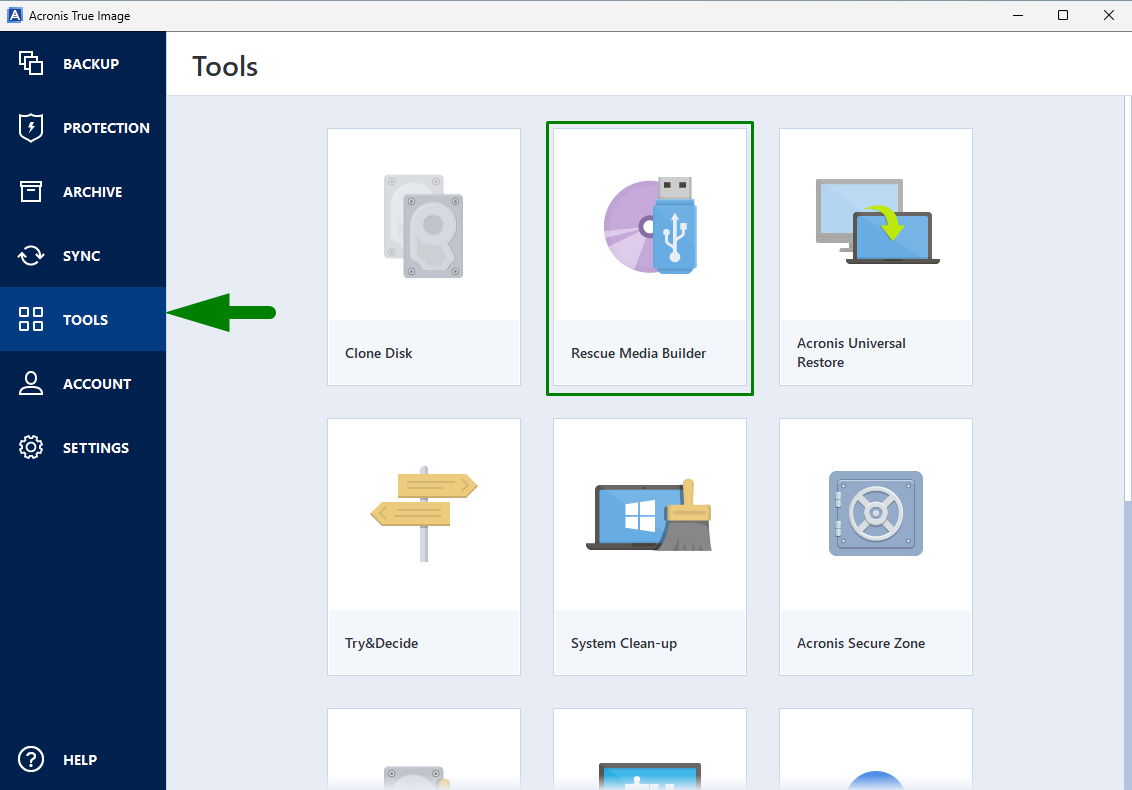
Backup
The process of backuping up with Acronis Bootable Image is quite straightforward. I made it a bit harder for me because I had to figure out how to make the backup into my NAS. Turns out you just start typing the typical SMB path \\nas.vrsek.local and a windows pops up and asks for the credentials.
If you want to make the backup onto a different drive and you don’t see it in Acronis GUI, use the terminal that is running as part of WinPE and use diskpart
| |
Make sure it’s a full backup by diving into advanced options. While you are there you can select to verify the archive after the backup.
Partitioning
Deleting old partitions
First, we need to delete all partitions from the existing disk. This part gave me anxiety.
| |
Double-make sure it’s the right disk.
Creating new partitions
Now we can create new partitions. First let’s create the Boot partition. It’s usually 100MB.
Right after that we are creating the main partition. I chose little less than 750GB which would leave me ~200GB for my Linux installation.
| |
Restore
After creating partitions, we can start restoring.
while still in the terminal, scroll up and copy the Acronis executable path and paste it.
In my case it was
| |
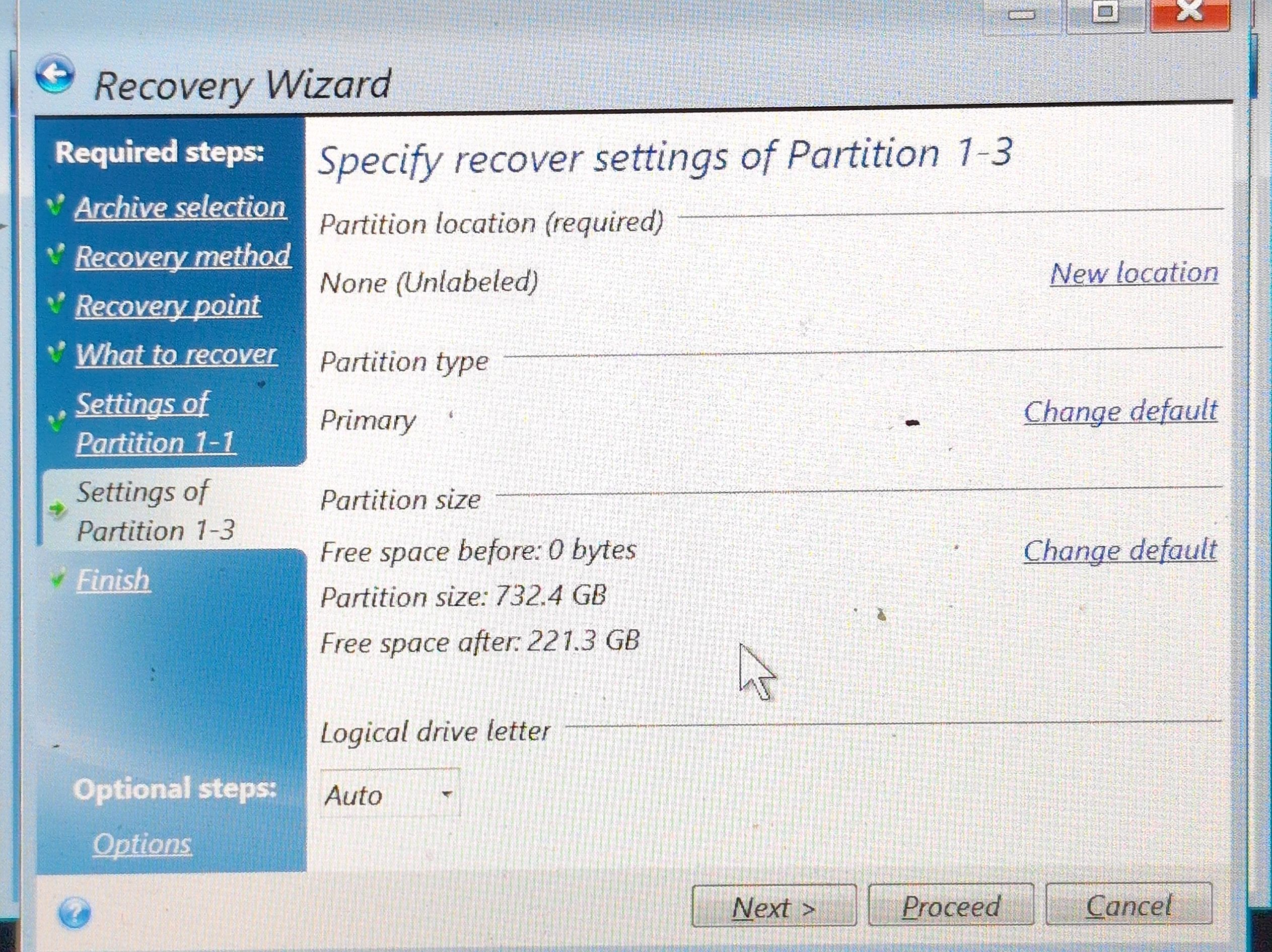
You will be able to choose from the list of partitions available on the disk and Acronis will automatically resize the data to fit your newly created partition.
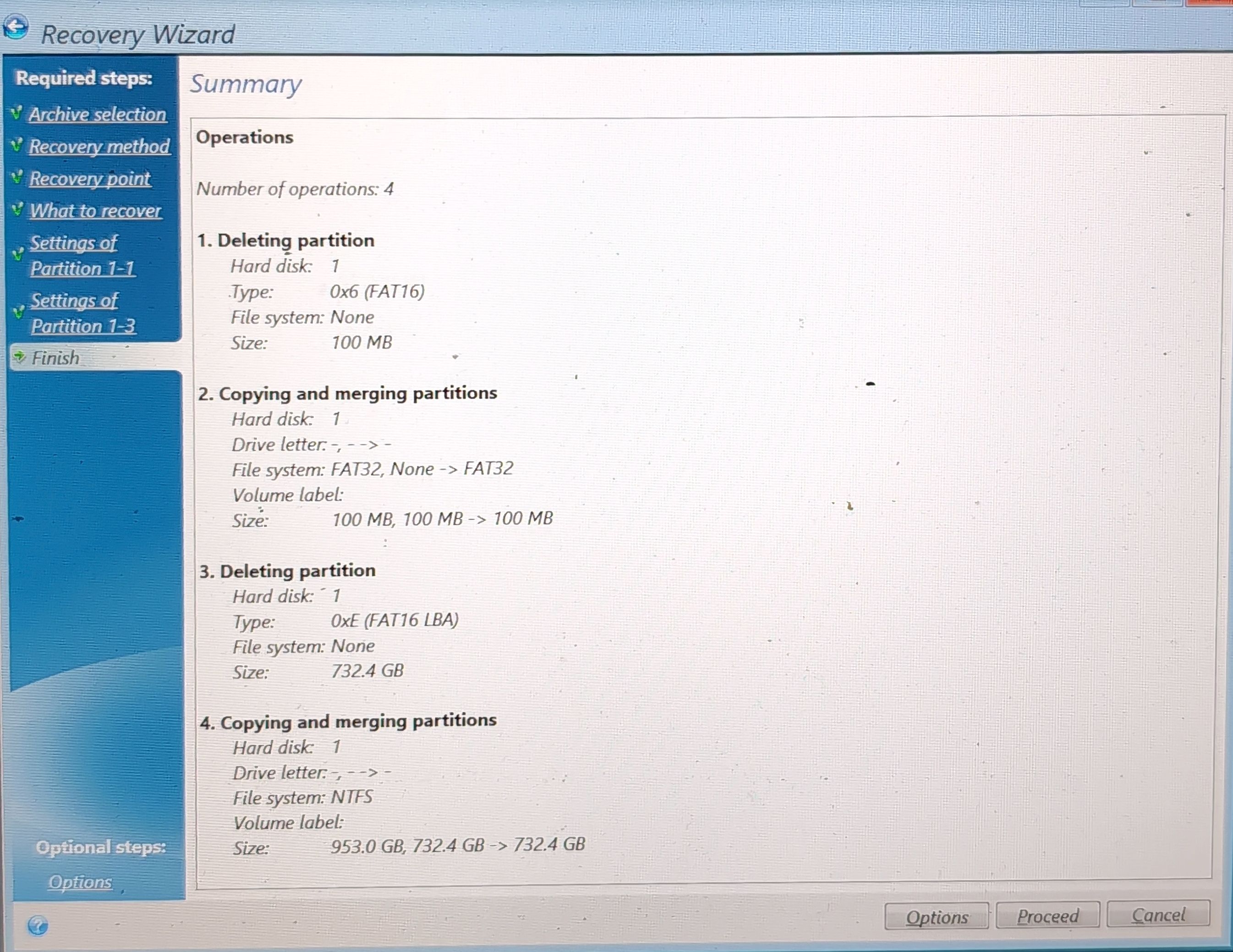
Here you can see how the final overview looks. You can see I copied the Boot and the Windows partition, which was also shrinked.
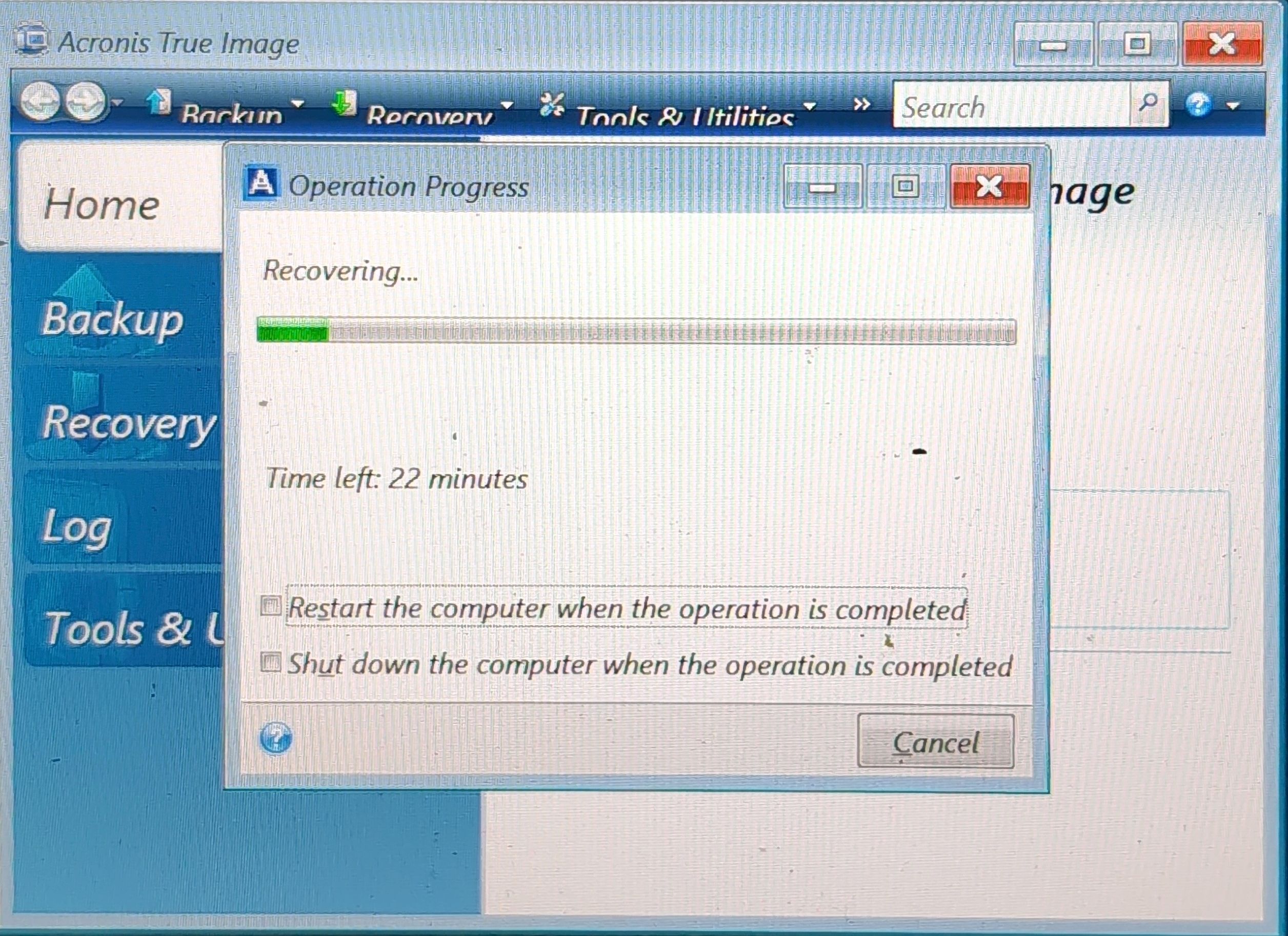
Now all we can is wait until the restoration process finishes. In the mean time we can check we have Linux installation media ready. If not and you don’t have access to another computer, you will have a hard(er) time.
Fixing Windows boot
Tech savvy people will know what time it is. Because we deleted our Windows partitions, the boot manager does not know which partition the Windows is installed on. Some might say we didn’t have to restore the boot partition at all, but at least we saved some time by not having to format the 100MB to FAT32 (joke.)
To fix the Windows, we need to point our UEFI boot to a correct Windows partition. Let’s go to the Windows terminal again. I booted Acronis Recovery Media.
First let’s find where our Windows is. Should be easy just based on the size. Make sure to note the letter of our 100MB boot volume as well. If any of them does not have a letter, assign it.
| |
Now to rebuild Boot. Make sure the Windows and EFI volume letters are correct
| |
Installing Linux
Use your Linux installation media to boot and start installation. You should be now able to see free space we just created on your disk!
The steps depend on your chosen distro, so I am not going to go into detail, although I will share that I used a guided partitioning using available free space. That create 3 new partitions in addition to our 2 previously existing ones.
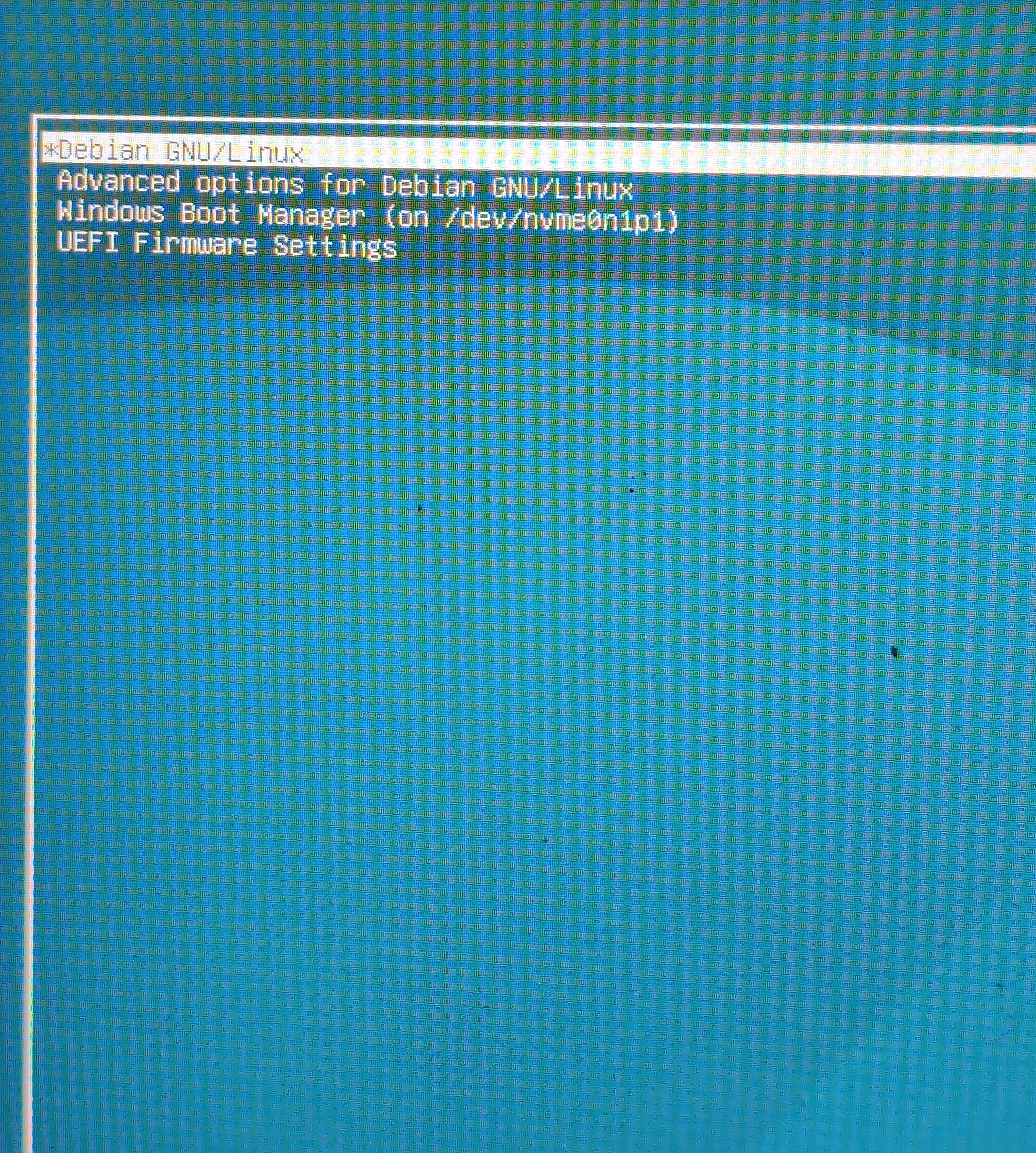
Linux is very friendly to our Windows installation and GRUB will detect and add boot option for Windows Boot Manager.
After you restart, you should see GRUB with Windows Boot Manager Option
Cleanup
You though it’s over? Not yet. At least I think it’s necessary. I did it even before I could test it.
Disable Fast boot
I think that without disabling this option in your UEFI settings, you would not even see GRUB and it would immediatelly boot into Windows.
Cleanup old Windows boot record
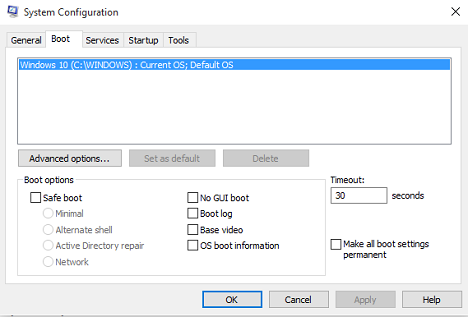
I had two boot options when I loaded the Windows Boot Manger. You can fix it by going to msconfig -> Boot and deleting the old boot record.
Finished
Okay, that’s it.
You successfully created a dual-boot system and you are one step closer to using Linux as your main operating system!
In case something went wrong, you always have the backup to go back to. The only thing you might have lost is a few hair and some of your time. Not your files.
Updated on 2026-05-08
